
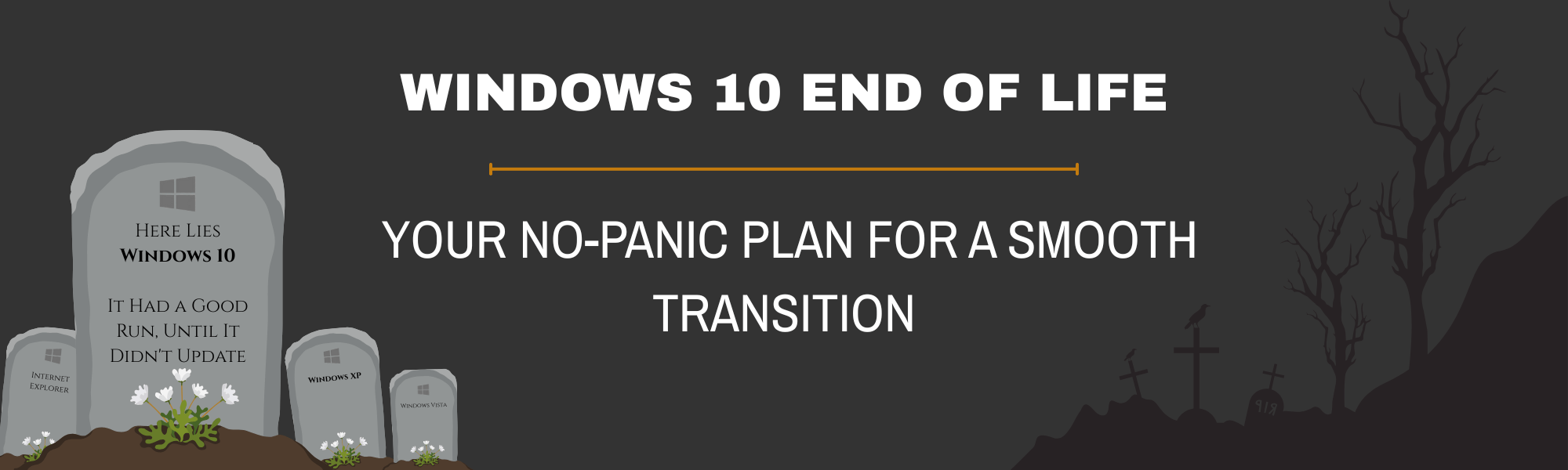
Microsoft is ending support for Windows 10 in October 2025. It’s a big shift, but it doesn’t have to be a big disruption—if you plan ahead and take incremental action. Whether you’re a one-person shop or managing a small team, this guide will help you understand what’s changing and how to prepare your systems the right way.
What Does “End of Life” Really Mean?
When Microsoft says Windows 10 is reaching “End of Life” on October 14, 2025, it doesn’t mean your computers will stop working overnight—but here’s what will happen:
- No more security updates – New vulnerabilities won’t get patched. That’s a big red flag for cybersecurity.
- No bug fixes – If something breaks, Microsoft won’t fix it.
- No tech support – Microsoft won’t help if you hit a system issue.
- Compatibility issues – Over time, newer software may stop supporting Windows 10.
Bottom line? You’ll be running a system that’s increasingly insecure and unsupported—and that’s a risk you can’t afford to ignore.
Why It Matters For Your Business
Running on unsupported software doesn’t just affect your IT—it impacts your bottom line. Here’s how:
- Security Vulnerabilities – Without updates, your systems are wide open to ransomware, phishing, and data breaches.
- Downtime Risks – Bugs and crashes become harder to fix leading to costly interruptions in your workflow.
- Compliance Trouble – If your business handles sensitive data (like in healthcare or finance), using unsupported software could put you out of compliance with regulations like HIPAA or PCI-DSS.
- Software Compatibility – Future updates from your apps, accounting tools, or printers may stop working with Windows 10.
Ignoring Windows 10 End of Life can quietly chip away at your operations. If you wait too long to act, you could be looking at higher costs—and more headaches—later.
Your No-Panic Plan for a Smooth Transition
You don’t need to overhaul everything overnight—but you do need a plan of action. Here’s how to stay ahead without the stress:
Step 1: Assessment (Month 1)
- Take inventory – Make a list of all devices running Windows 10. Include desktops, laptops, and anything used by remote employees.
- Check compatibility – Some machines can upgrade to Windows 11. Others may be too old and need to be replaced.
Step 2: Budgeting (Month 2)
- Price it out – Estimate costs for hardware, software, or IT services.
- Explore payment options – Look into financing options if needed.
Step 3: Planning (Month 3)
- Set priorities – Start with high-risk machines (older hardware, devices used for sensitive data, etc.)
- Create a timeline – Spread upgrades or replacements over several months so it’s manageable—financially and logistically. Plan upgrades in low-activity periods to avoid disruption.
- Build in cushion – Aim to finish a few months before the deadline. That way, you’re not rushing if something unexpected occurs.
Step 4: Implementation (Months 4 & 5)
- Protect your data – Create backups to avoid unexpected issues.
- Test for issues – Verify a successful upgrade on a less critical machine first.
- Prioritize key systems – Start with the tools and machines your business relies on most.
- Double-check performance – Test upgrades thoroughly before full rollout.
Step 5: Wrap-up (Month 6)
- Retire old hardware securely – Erase all data before disposing of old devices through a certified program.
- Double-check performance – Test upgrades thoroughly to ensure a successful rollout.
Got Questions? Proteli Has Answers.
You don’t have to be a tech expert to make the right move—just a smart business owner who knows when to ask for help. Proteli’s team can walk you through every step of upgrading from Windows 10. Let’s chat and figure out what makes sense for your business.